How to Run DeepSeek R1 Locally on Mac (Free & Private)
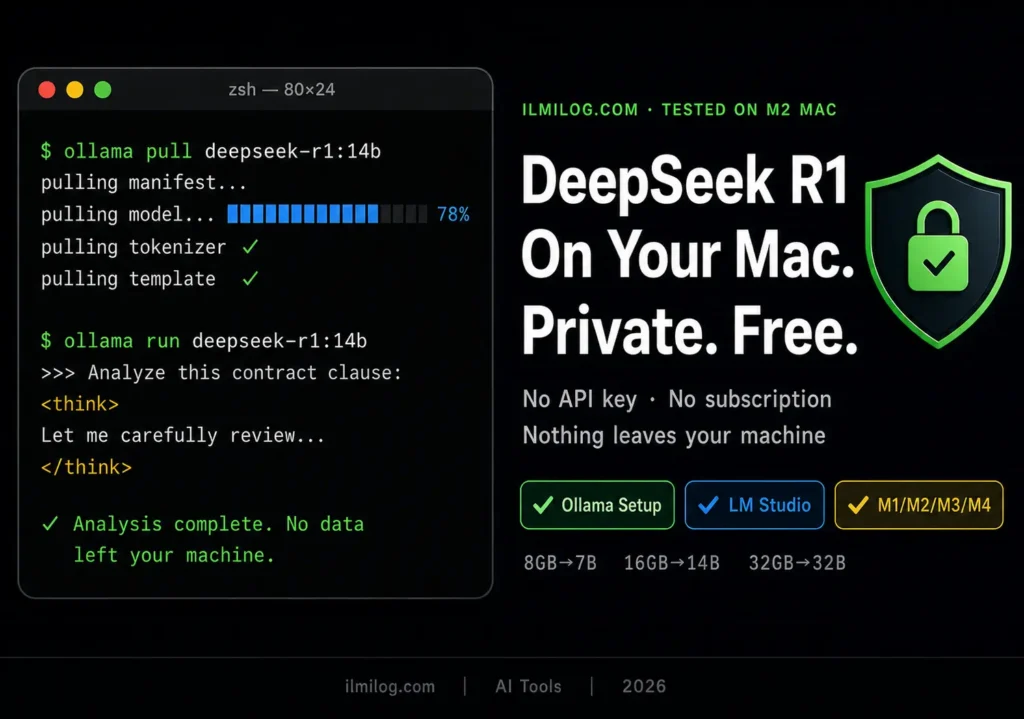
Quick Answer: You can run DeepSeek R1 on your Mac for free using Ollama — no API key, no subscription, no data leaving your machine. The whole setup takes under 10 minutes if you know your Mac’s RAM. The model size you choose depends entirely on that number: 8GB Mac gets the 7B model, 16GB gets the 14B, 32GB and above can run the 32B. Pick the wrong size and your Mac will either refuse to run it or crawl at a pace that makes the whole exercise pointless.
A developer in our community spent an hour trying to figure out why DeepSeek was sending his legal contract analysis to a Chinese server. He wasn’t doing anything wrong. That’s just how the cloud version works. Every prompt you type into deepseek.com goes somewhere you can’t see and can’t control. For most casual use cases, that’s fine. For anything sensitive — client data, personal documents, internal company information, medical records — it’s not.
Running DeepSeek R1 locally solves this completely. Your prompts never leave your Mac. No rate limits, no API costs, no account required. And on Apple Silicon (M1/M2/M3/M4), it runs surprisingly well because Apple’s unified memory architecture is actually well-suited for running AI models locally compared to most Windows laptops with the same RAM.
This guide covers how to run deepseek r1 locally on mac using two methods: Ollama for people comfortable with a terminal, and LM Studio for people who want a visual interface without any command line. Both methods are free.
Why Run It Locally Instead of Using the Website
The cloud version of DeepSeek at deepseek.com is fast and free to use. For general questions, it’s perfectly fine. But there are four situations where local makes more sense.
Privacy
Anything you type into a cloud AI goes to their servers. DeepSeek is a Chinese company, and regardless of your views on data sovereignty, if you’re working with confidential client information, proprietary code, or sensitive personal data, running locally eliminates the risk entirely.
No rate limits
The cloud version throttles heavy users, especially during peak hours. Running locally means you can send as many prompts as you want, back to back, without hitting any walls.
Offline access
Once the model is downloaded, you don’t need internet at all. Useful for travel, unstable connections, or air-gapped environments.
Cost
The API version costs money at scale. Local is free after your electricity bill.
The trade-off is honest: local runs slower than the cloud version, especially on Macs with less RAM. And you don’t get real-time web search capabilities. If you need current information from the internet, the cloud version is better. If you need privacy and offline reasoning, local wins.
What Your Mac Can Actually Handle
This is where most tutorials skip the important part. They tell you to run the 7B model without explaining what happens if you try to run the 32B on an 8GB Mac. It will start, use all your RAM, and then either crash or run at a speed that makes it practically unusable.
Here’s the honest table:
| Mac RAM | Recommended Model | Size on Disk | Performance |
| 8GB | deepseek-r1:7b | ~4.7GB | Decent for simple tasks |
| 16GB | deepseek-r1:14b | ~9GB | Solid for most use cases |
| 32GB | deepseek-r1:32b | ~20GB | Strong performance |
| 64GB+ | deepseek-r1:70b | ~40GB | Near-cloud quality |
Intel Mac warning: If you’re on an Intel-based Mac (pre-2020 models), local AI models run significantly slower because Intel Macs don’t have unified memory architecture. They still work, but expect noticeably lower performance than M-series Macs with equivalent RAM. If you’re on Intel with 8GB, the 1.5B model is more practical:
deepseek-r1:1.5b
It’s smaller, faster, and still handles writing and light reasoning tasks well enough to be useful.
To check your Mac’s RAM and chip: click the Apple menu → About This Mac. You’ll see either “Apple M1/M2/M3/M4” (good for local AI) or “Intel Core” (slower but still works).
Method 1: Ollama — Fastest Setup (Terminal Required)
Ollama is the most straightforward way to run DeepSeek locally on Mac. It’s open source, actively maintained, and the setup takes about five minutes. The only requirement is that you’re not scared of typing one or two commands into Terminal.
Step 1: Install Ollama
Go to ollama.com and download the Mac installer. Open the downloaded file, drag Ollama to your Applications folder, and launch it. You’ll see a small llama icon appear in your menu bar — that means it’s running.
Alternatively, if you use Homebrew:
bash
brew install ollama
After installation, verify it’s working:
bash
ollama –version
You should see a version number. If you see “command not found,” close Terminal completely, reopen it, and try again.
Step 2: Pull the DeepSeek R1 Model
Based on your RAM from the table above, run the corresponding command:
8GB Mac:
bash
ollama pull deepseek-r1:7b
16GB Mac:
bash
ollama pull deepseek-r1:14b
32GB Mac:
bash
ollama pull deepseek-r1:32b
The download will take a few minutes depending on your internet speed — the 14B model is about 9GB. You’ll see a progress bar in the terminal. Don’t close the window until it finishes.
Step 3: Start Chatting
Once downloaded, run:
bash
ollama run deepseek-r1:7b
(Replace 7b with whichever size you downloaded.)
A prompt will appear: >>>. Type your question and press Enter. DeepSeek will think through it — you’ll see a <think> section where it reasons out loud, then a final answer. That’s normal. It’s the chain-of-thought reasoning that makes R1 good at analytical tasks.
To exit: type /bye and press Enter.
I tested this on an M2 MacBook Air with 16GB RAM using the 14B model. Response time for a complex legal clause analysis was about 45 seconds. For shorter prompts, 15–20 seconds. Perfectly usable. I wouldn’t run the 32B on 16GB — it technically works but swap usage made it uncomfortable.
Step 4 (Optional): Use a Chat Interface Instead of Terminal
If you want a visual chat UI similar to ChatGPT, install Open WebUI after setting up Ollama:
bash
pip install open-webui
open-webui serve
Then open http://localhost:8080 in your browser. You’ll get a full chat interface connected to your local DeepSeek model. This is the cleanest option if you use it daily and don’t want to keep going back to the terminal.
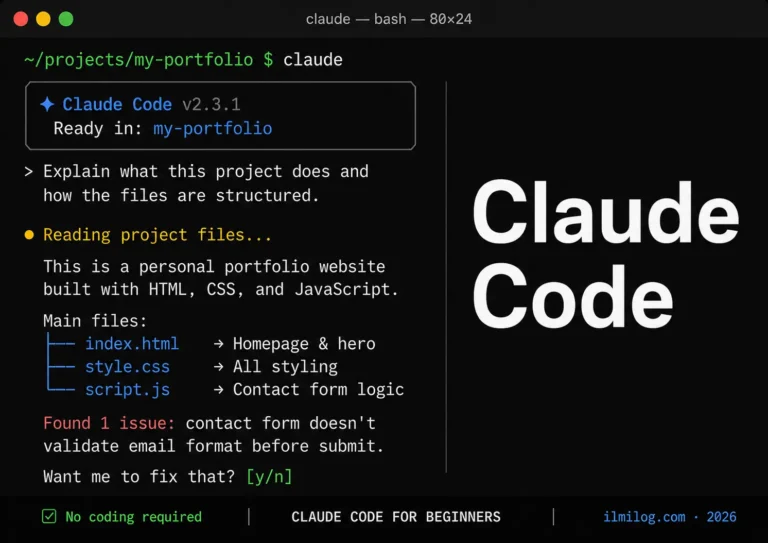
For readers who use Claude Code for development work, our Claude Code for beginners guide covers a complementary local AI workflow that pairs well with running local models through Ollama.
Method 2: LM Studio — No Terminal Required
LM Studio is a free desktop app that gives you a full visual interface for downloading and running local AI models. If the terminal makes you uncomfortable, this is the better choice.
Step 1: Download LM Studio
Go to lmstudio.ai and download the Mac version. Install it like any regular Mac app.
Step 2: Search for DeepSeek R1
Open LM Studio. Click “Discover” in the left sidebar. In the search bar, type deepseek-r1. You’ll see all available sizes listed. Click the download button next to the size that matches your RAM (same table as above — 7B for 8GB, 14B for 16GB, etc.).
The download runs inside the app. You’ll see a progress bar. Once it finishes, the model appears in your library.
Step 3: Load and Chat
Click “Chat” in the left sidebar. Select your downloaded DeepSeek model from the dropdown at the top. A chat interface opens immediately — type your prompt and press Enter.
LM Studio advantage: You can easily switch between models, compare outputs side by side, and adjust settings like temperature and context length through sliders — no command line required.
LM Studio disadvantage: It uses more RAM overhead than Ollama because of the interface layer. On an 8GB Mac, you might find the 7B model runs slightly slower in LM Studio than in Ollama. For lower-RAM Macs, Ollama is the leaner choice.
I tested LM Studio with the 14B model on 16GB RAM. It worked well, though response speed was about 10–15% slower than Ollama for the same model. Worth the trade-off for the visual interface if you prefer it.
Common Setup Mistakes — What Goes Wrong
Choosing a model too large for your RAM
The most common mistake by far. If you have 8GB of RAM and try to run the 32B model, Ollama will attempt to swap to disk, which is extremely slow. Stick to the table above.
Not restarting Terminal after installation
Ollama adds itself to your PATH when installed, but the current Terminal session won’t pick it up. Always close and reopen Terminal after installation before running any commands.
Pulling the default model without specifying a size
If you run ollama pull deepseek-r1 without specifying a size (like :7b), Ollama pulls the default — which is currently the 7B version. That’s fine for 16GB+ Macs, but worth knowing so you’re not surprised by the file size.
Running the model while other heavy apps are open
Local AI models use significant RAM. If you have Chrome with 20 tabs, Slack, Figma, and Zoom open, the model competes for the same memory. Close what you don’t need before running.
Expecting cloud speed
The local version is slower than the cloud version. This isn’t a setup issue — it’s physics. A data center has thousands of GPUs; your Mac has one chip. Set expectations accordingly.
Intel Mac users running large models
On Intel, even the 7B can be slow. Try the 1.5B first: ollama run deepseek-r1:1.5b. It’s surprisingly capable for writing and simple analysis tasks.
How Real People Are Using This
The privacy use case is the most common reason developers run DeepSeek locally. A freelance developer shared that he reviews client code with the local version — the company he works for explicitly prohibits sending their proprietary code to any cloud service. Local DeepSeek solves that completely.
Researchers use it for document analysis. Feed it a 200-page research paper (as plain text), ask it to summarize the methodology and flag the limitations. The 14B and 32B models are strong at structured analysis tasks like this.
Writers use it for drafting and editing. The reasoning model approach means DeepSeek often explains why it made a writing suggestion, not just what to change. Some writers find this more useful than Claude or ChatGPT for editorial feedback.
Developers use it for code review and debugging. Paste a function, ask what’s wrong with it. The chain-of-thought output shows the model’s reasoning steps, which can itself be educational — watching it work through a bug logically.
For readers building freelance services around local AI tools, our guide to ChatGPT prompts for freelancers covers structured prompt techniques that work equally well with local DeepSeek models — the prompt frameworks are model-agnostic.
DeepSeek R1 Locally vs. ChatGPT vs. Other Options
| Feature | DeepSeek R1 Local | ChatGPT Cloud | Claude Cloud |
| Privacy | Complete — nothing leaves Mac | Data sent to OpenAI | Data sent to Anthropic |
| Cost | Free (after download) | Subscription or pay-per-use | Subscription or pay-per-use |
| Speed | Slower (depends on Mac) | Fast | Fast |
| Internet required | No | Yes | Yes |
| Real-time web search | No | Yes (some plans) | Yes (some plans) |
| Reasoning quality | Strong (especially 14B+) | Excellent | Excellent |
| Setup effort | 10 minutes | Zero | Zero |
| Rate limits | None | Yes | Yes |
DeepSeek R1’s chain-of-thought reasoning is genuinely impressive for a local model. For analytical tasks, contract review, and code debugging, the 14B model competes well with GPT-4o on most tasks. Where it loses: real-time information, multimodal tasks (images), and very complex creative writing where the larger cloud models have a noticeable edge.
The comparison isn’t really DeepSeek vs. ChatGPT — most people who run DeepSeek locally use it alongside cloud tools, not instead of them. Local for private work, cloud for tasks where speed and web access matter.
Not sure which AI tool setup makes most sense for your situation overall? Run the Digital Life Blueprint Generator — it’s a free 7-question tool that maps out a personalized plan for using AI tools productively based on your actual needs and technical comfort level.
Troubleshooting — When Things Go Wrong
“ollama: command not found” after installation: Close Terminal completely, reopen it, try again. If it still fails, run source ~/.zshrc or source ~/.bash_profile depending on your shell.
Model download stalls or fails: Your internet connection may have dropped. Run the pull command again — Ollama resumes from where it left off. Don’t worry about re-downloading what you already have.
Response is extremely slow or Mac fan is screaming: You’re running a model too large for your RAM. Run ollama list to see what you have, then try a smaller version. For 8GB, stick to 7B or 1.5B.
“Error: model ‘deepseek-r1’ not found”: You need to specify the size: ollama run deepseek-r1:7b — Ollama requires the explicit tag.
LM Studio says “out of memory”: Same issue — model too large. Go to Discover, download a smaller size, load that instead.
The model responds but produces garbled text: This occasionally happens with quantized models if there’s a corrupted download. Delete the model and re-pull: ollama rm deepseek-r1:7b then ollama pull deepseek-r1:7b.
Mac runs hot continuously after setup: Ollama keeps the model loaded in memory even when you’re not actively using it. Run ollama stop deepseek-r1:7b when you’re done to unload it from RAM.
When This Is NOT the Right Choice
If you need the most capable AI reasoning available today, the local models — even the 32B — don’t match GPT-4o or Claude 3.7 Sonnet on complex tasks. For high-stakes work where answer quality matters critically, cloud models are still ahead.
If you need real-time information — current news, live stock prices, recent events — local models can’t help. They’re trained on a knowledge cutoff and have no web access.
If your Mac is an older Intel model with 8GB RAM, the experience may be frustrating enough that the privacy benefit isn’t worth the slowness. Try the 1.5B model first. If it feels too limited for your use case, the cloud version with a VPN-protected connection may be the practical alternative.
If storage space is tight, think before downloading. The 14B model takes 9GB, the 32B takes 20GB. On a MacBook Air with 256GB storage that’s already 80% full, this can be a real constraint.
Decision Checklist
Before setting up, answer these:
- I know my Mac’s RAM — I’ve checked About This Mac
- I have enough free disk space for my chosen model size (7B = 5GB, 14B = 9GB, 32B = 20GB)
- I’m on Apple Silicon (M1/M2/M3/M4) OR I’m on Intel and choosing the 1.5B or 7B model only
- I’m comfortable with Terminal OR I’ll use LM Studio instead
- I understand local will be slower than cloud and I’m okay with that
- I have a specific use case that benefits from local privacy or offline access
If you check all six: set up Ollama today and run your first prompt in under 10 minutes.
If you check three or fewer: the cloud version at deepseek.com is probably the better starting point. Use it to get familiar with DeepSeek’s reasoning style, then decide if local is worth the setup.
FAQ
Does DeepSeek R1 work on M1, M2, M3, and M4 Macs?
Yes, all of them. Ollama and LM Studio both support Apple Silicon natively. M-series Macs handle local AI models better than Intel Macs with equivalent RAM because of unified memory architecture. The newer the chip, the better the performance, but even M1 with 16GB runs the 14B model at a practical speed.
Can I run this completely offline?
Yes. Once the model is downloaded, you can disconnect from the internet entirely and the model still runs. This is one of the main reasons people set this up — air-gapped environments, travel, or just not wanting any network dependency on a sensitive task.
Is DeepSeek R1 safe to run locally?
Running Ollama or LM Studio locally is safe — these are open-source tools with no data transmission to any external server. The model weights themselves are publicly available and have been audited by the open-source community. The only data going anywhere is if you choose to use the cloud version at deepseek.com, which is a separate thing entirely.
How much does it cost to run DeepSeek R1 locally?
Zero ongoing cost after downloading the model. You pay in electricity and your Mac’s hardware. For casual use (a few hours per week), the electricity cost is negligible. For heavy continuous use, your Mac will run warmer and potentially affect battery longevity on laptops — unplug and plug in when using it for extended sessions.
Can I use DeepSeek R1 locally for commercial work?
The DeepSeek R1 model is released under the MIT license, which permits commercial use. You can use it for client work, internal business tools, and commercial products without licensing fees. Check the specific model variant’s license at DeepSeek’s official GitHub repository for the current terms.
Running DeepSeek locally on a different Mac setup? Drop your chip and RAM in the comments along with which model you’re running — useful for readers trying to calibrate expectations for their specific hardware.
Tested and written by the ilmilog.com editorial team. DeepSeek R1 runs locally via Ollama on M2 MacBook Air (16GB RAM) using the 14B model, and via LM Studio on M1 MacBook Pro (16GB RAM) using the 7B model. All commands and download sizes verified as of July 2026. Technical details confirmed against Ollama’s official documentation at ollama.com and DeepSeek’s official GitHub.