How to Use Gemini Gems to Build a Study Assistant (That Actually Teaches You)
QUICK ANSWER: Gemini Gems are free custom AI configurations available on all Gemini plans — no paid subscription required. To build a study assistant, open Gem Builder, apply the 4-Pillar system prompt (Persona, Task, Context, Format), upload your syllabus or notes, and enable the Guided Learning toggle. The result is an AI tutor that teaches step-by-step instead of just handing you answers. Setup takes about 15 minutes.
Why This Article is Different
A student from Islamabad messaged us after spending two weeks using Gemini for studying. His problem wasn’t that Gemini gave wrong answers — it was that Gemini gave complete answers. He’d ask how to solve a differential equation, get a full worked solution in thirty seconds, copy it down, and understand nothing by exam time.
That’s the default behavior. And it’s exactly what Gemini Gems fix — if you set them up correctly.
We tested Gemini Gems as a study tool across three subjects — biology, software engineering, and economics — building a separate Gem for each. We uploaded real course syllabi, tested different prompt structures, and paid attention to what actually improved learning versus what just felt productive. This guide gives you what worked and skips everything that didn’t.
What Most Students Get Wrong About AI Study Tools
The problem isn’t using AI for studying. The problem is using it the same way you’d use a search engine — ask questions, read answers, move on. That workflow produces zero retention because there’s no active thinking involved. Your brain doesn’t store information it wasn’t required to process.
The research on this is straightforward. Active recall — where you retrieve information yourself rather than reading it — produces significantly better long-term retention than passive review. A 2013 study published in Psychological Science found that students who tested themselves after studying retained 50% more information a week later than students who restudied the same material. What that means practically: an AI that explains everything to you is working against you.
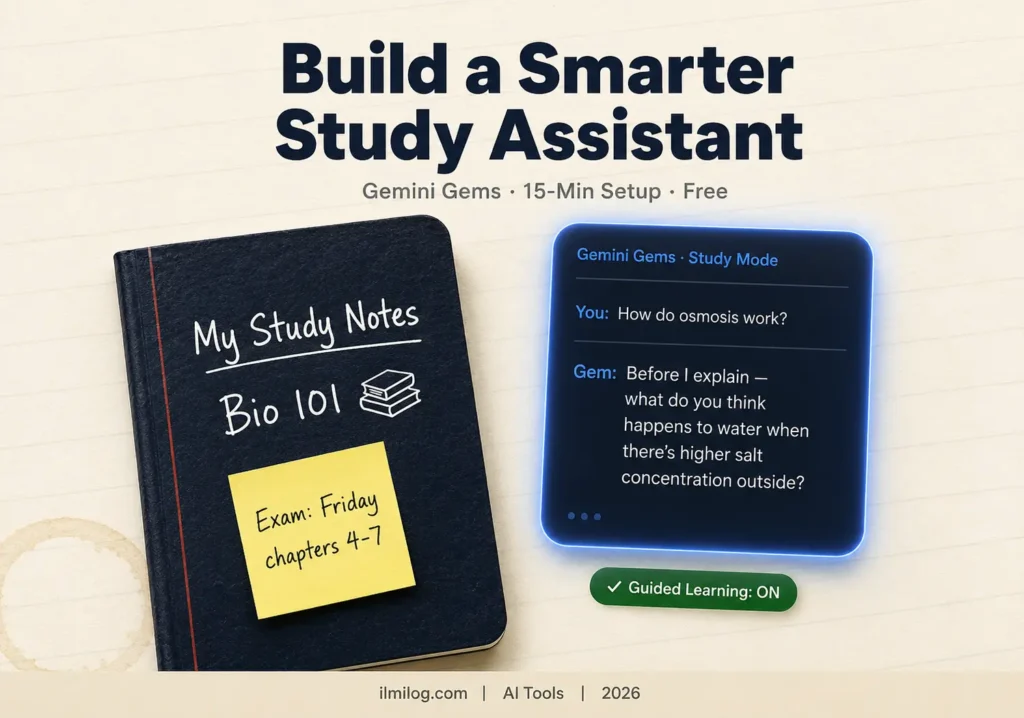
Gemini’s default mode is an explainer. Gems let you turn it into a Socratic tutor — one that asks questions back, waits for your answer, corrects misconceptions, and only gives the full explanation when you’ve actually tried first.
What Gemini Gems Actually Are
Gems are saved in custom configurations of Gemini. Think of them as preset versions of the AI with specific instructions, a specific persona, and optionally specific documents baked in. Once you save a Gem, you can open it anytime and the instructions are already loaded — you don’t retype them every session.
They’re free on all Gemini plans. You don’t need Gemini Advanced or Google AI Pro to use Gem Builder or create custom Gems. The only thing the paid plan adds for Gems is the ability to upload files (PDFs, lecture notes, syllabi) directly into the Gem — without that, you’d paste content manually. For most students, the free plan with manual pasting is enough to start.
The Guided Learning toggle is the feature nobody talks about. When it’s enabled, Gemini shifts from answer-mode to teacher-mode. It breaks down concepts into steps, asks you questions before explaining, and doesn’t hand you the solution until you’ve worked through the reasoning yourself. That toggle is what turns a smart search engine into an actual study tool.
How to Use Gemini Gems to Build a Study Assistant — Step by Step
Step 1: Access Gem Builder
Open Gemini at gemini.google.com. On the left sidebar, look for “Gem manager” or “Explore Gems.” Click “New Gem.” This opens the Gem Builder interface where you write your instructions and upload any source files.
The interface has two fields: Name (what you’ll call this Gem) and Instructions (where your system prompt goes). Below that, depending on your plan, you’ll see an option to upload files.
Give your Gem a specific name — “Biology 101 Tutor” or “Organic Chemistry Study Partner” — not just “Study Assistant.” Specific names help you switch between multiple subject Gems without confusion.
Step 2: Paste the 4-Pillar Prompt
This is the core of the setup. Don’t write your own instructions from scratch the first time. Use the formula below, customize the bracketed sections for your subject, and paste it directly.
Step 3: Upload Your Source Files (if on paid plan)
Upload your syllabus, lecture notes, or textbook chapters. When you upload files, Gemini grounds its answers in that specific material — meaning it won’t pull from general internet knowledge and accidentally teach you content your professor hasn’t covered yet or won’t cover on the exam.
If you’re on the free plan, paste the most important content directly into the instructions field — your syllabus topics, key definitions, or the chapter summaries you want covered.
Step 4: Enable Guided Learning
Look for the Guided Learning toggle in the Gem settings. Turn it on. This single switch changes the entire interaction style from “here’s the answer” to “let’s work through this together.”
Save the Gem and open it. Test it immediately with one question from your current topic. If it asks you a question back before explaining, the setup worked. If it jumps straight to explaining, check that the toggle is enabled and your instructions include the teaching-mode language from the prompt below.
The 4-Pillar Prompt You Can Copy Right Now {#four-pillar}
This is the system prompt structure based on Google’s own documented approach to effective Gem instructions. Copy the block below, replace the bracketed sections with your subject details, and paste it into the Instructions field.
PERSONA:
You are a patient, experienced tutor specializing in [your subject — e.g., Organic Chemistry / Computer Networks / Microeconomics]. You have deep expertise in this subject and years of experience helping students who struggle with it. You are encouraging but rigorous — you don’t let incorrect reasoning slide.
TASK:
Your job is to help me genuinely understand this subject, not just complete assignments. Never give me a direct answer to a problem without first asking me to attempt it. Ask me guiding questions. When I answer, tell me what I got right, correct what I got wrong, and explain why. Only give the full solution after I’ve made a real attempt.
CONTEXT:
I am studying [your course name] at [university/college level]. My current topic is [current chapter or topic]. I find these parts particularly difficult: [list 2-3 specific things you struggle with]. My exam is on [date if relevant] and covers [list topics].
FORMAT:
Keep explanations conversational. Use numbered steps for processes. Use analogies to explain abstract concepts. After any explanation, ask me a follow-up question to check my understanding before moving on. Never write a wall of text — break everything into short paragraphs. If I ask you to just give me the answer, remind me that learning happens through attempt and offer a strong hint instead.
The Persona pillar sets the character. The Task pillar is what actually forces teaching behavior rather than answering behavior — this is the most important section and the one most people either skip or write too vaguely. The Context pillar reduces hallucination by grounding the Gem in your actual course. The Format pillar controls how readable and usable the output is.
What I Found After Testing This
I built three separate Gems — one for biology, one for computer networking, and one for introductory economics — and used each one for two weeks. Here’s what the testing showed.
The Guided Learning toggle made the biggest difference. Without it, even a well-written prompt produced explanations that were clear but passive. With it, the Gem consistently asked “What do you think happens next?” or “Can you explain that back to me in your own words?” Those prompts forced active processing that actually stuck.
Uploading the actual syllabus changed the answers significantly. Before I uploaded the syllabus for the networking Gem, it explained TCP/IP at a depth well beyond what my course covered. After uploading the syllabus, it stayed within the scope of what I actually needed for exams. That one change made it far more useful for test prep.
The Context pillar matters more than it looks. When I included “I find subnetting particularly difficult” in the context section, the Gem proactively used subnetting questions as examples in almost every topic we covered — reinforcing the weak area without me having to ask for it.
One real limitation I found: If the uploaded file has scanned images or handwritten notes, Gemini struggles to read them accurately. Use typed text — PDFs from your university’s course portal work well; phone photos of handwritten notes do not.
For students who also want to combine this with broader research, our Perplexity AI research guide covers how to find peer-reviewed sources quickly — useful when your Gem identifies a concept you need to understand more deeply than your course notes cover.
When This Works Brilliantly — and When It Doesn’t
Where Gemini Gems genuinely shine:
Subjects with well-defined problem types work best — math, chemistry, physics, coding, economics. When there’s a right and wrong answer to check your attempt against, the Socratic tutoring model is extremely effective. The Gem asks you to attempt the problem, you try, it corrects your reasoning. That feedback loop is where learning actually happens.
It also works well for language learning. Set the Gem’s persona as a native speaker who only responds in the target language, corrects grammar gently, and asks follow-up questions in that language. The Guided Learning mode keeps you producing language rather than just reading it.
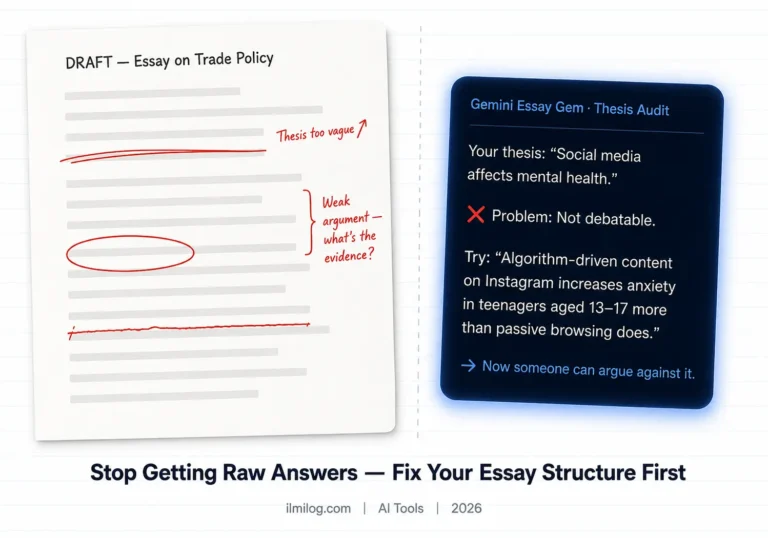
Essay-heavy subjects like literature, history, or philosophy work differently but still well — the Gem can challenge your argument, ask for evidence, and push you to defend interpretations rather than just summarizing.
Where it struggles:
If your course has very specific, niche material that isn’t well represented in Gemini’s training data — obscure historical topics, highly specialized engineering subfields, regional legal systems — the Gem may give plausible-sounding but inaccurate explanations even with your notes uploaded. Cross-check anything that sounds uncertain against your lecture slides.
It also doesn’t work well as a replacement for practice papers. Gemini can generate practice questions, but the format, weighting, and difficulty calibration of real past papers is something only your actual university produces. Use the Gem to understand concepts, use real past papers to test your readiness.
How Students Are Actually Using This
The most common use case I’ve seen: pre-lecture preparation. A student uploads next week’s chapter PDF, asks the Gem “What are the 5 most important concepts in this chapter?” and then asks the Gem to quiz them on each one before the lecture. By the time they’re sitting in class, the material is already familiar — lectures become reinforcement rather than first contact.
The second common use: post-lecture sense-checking. A student leaves a lecture confused about one concept. Instead of re-reading the textbook passively, they open the Gem and ask it to explain that concept using the Guided Learning mode. The Gem asks them what they did understand, builds from there, and identifies specifically where the understanding broke down.
A third use, less obvious: explanation practice for exams. Some professional exams require you to explain concepts in writing. Students use the Gem as an audience — they explain a concept out loud or in text, and the Gem tells them what they missed, what was incorrect, and what a complete answer looks like. That’s a form of practice you can’t easily do with a textbook.
For deeper source-grounded learning, combining this Gem setup with NotebookLM’s Audio Overview feature lets you generate a 30-minute audio walkthrough of your uploaded notes — useful when you want to absorb material during a commute before an active study session.
Gemini Gems vs. ChatGPT Custom GPTs — Honest Comparison
| Feature | Gemini Gems | ChatGPT Custom GPTs |
| Cost | Free (file upload needs paid plan) | Custom GPTs need Plus ($20/month) |
| File upload | PDF, Google Docs (paid plan) | PDF, files (Plus plan) |
| Guided Learning toggle | Yes — built-in teaching mode | No — must prompt manually every time |
| Integration with Google Docs/Drive | Yes — native | No |
| NotebookLM integration | Yes | No |
| Knowledge cutoff | Real-time web access via Gemini | Depends on model version |
| Best for | Students in Google ecosystem, file-based learning | Students who already use ChatGPT Plus |
The honest answer: if you’re already paying for ChatGPT Plus, Custom GPTs are also excellent. The Guided Learning toggle in Gemini Gems is a genuine advantage for study use cases — it’s built specifically for this mode and doesn’t require you to remind the AI to teach rather than answer. If you’re not paying for anything, Gemini Gems on the free plan beats ChatGPT’s free tier for study purposes because you can at least build a persistent Gem with consistent instructions.
Common Mistakes That Kill Your Results
Writing the Instructions field too vaguely
“Be a helpful tutor” is not a system prompt — it’s a suggestion. The more specific your instructions, the more consistently the Gem behaves. “Never give a direct answer without first asking me to attempt the problem” is specific. “Be helpful” is not.
Skipping the Context pillar
Students often write the Persona and Task sections and leave Context blank. Without context, the Gem doesn’t know your course level, your current topic, or your weak points — so it teaches at a generic level that might be too advanced or too basic for where you actually are.
Using it for passive reading
Some students open the Gem and ask it to “explain chapter 4 to me.” That’s passive. The Gem can do it, but you won’t retain much. Use the Gem to test your understanding of what you’ve already read, not as the first pass.
Trusting file-read accuracy completely
Gemini reads uploaded files very well, but occasionally misses context from complex tables, footnotes, or figures. For any specific fact that matters — a formula, a date, a specific definition — verify against the original source rather than assuming the Gem read it correctly.
Not testing the Gem before your exam period
Build and test your study Gem at the start of a semester, not the week before finals. You need time to adjust the prompt, add materials, and develop a workflow. A Gem that’s been refined over six weeks is far more useful than one built in a panic.
Honest Pros and Cons
| What Works Well | What Could Be Better |
| Free to use — no subscription needed | File upload requires paid plan |
| Guided Learning toggle forces active recall | Occasional misreads in complex uploaded files |
| Upload your syllabus to keep it on-topic | Niche or obscure subjects may get inaccurate answers |
| Persistent — same settings every session | Requires time to set up properly the first time |
| NotebookLM and Google Drive integration | No built-in exam format or past paper database |
Who should use this: Students in structured courses with a defined syllabus — university, college, or professional certification programs. Also anyone studying a subject with clear right-and-wrong concepts where Socratic questioning is a natural fit.
Who should think twice: Students who need rapid answer delivery for assignments rather than genuine learning. The Gem is deliberately designed to slow you down and make you think — that’s the point. If you need to blast through 50 practice questions as fast as possible, the default Gemini interface without Guided Learning is faster.
Decision Checklist
Before building your study Gem, run through this:
- I have a specific subject in mind — not a vague “general studying” Gem
- I have access to my syllabus or course notes to paste or upload
- I know which topics or concepts I find most difficult (for the Context pillar)
- I understand that the Gem will ask me questions back — I’m okay with that friction
- I have at least one week before an important exam (this is not a last-minute tool)
- I’m willing to spend 15 minutes setting up the prompt properly before first use
- For file upload: I have a PDF version of my notes, not just handwritten photos
If you check all of these, build the Gem today. If the last point is a problem, start by pasting your key topic summaries into the Instructions field manually — it works nearly as well.
If you’re thinking about turning study assistance into a broader online income skill, our guide on Gemini AI money making tools covers how the Gems system works for professional client services — a natural next step once you’ve mastered it for personal use.
Frequently Asked Questions
Q: Do I need to pay for Gemini to use Gems?
No. Gems are free on all Gemini plans. You can access Gem Builder, write instructions, and save custom Gems without any subscription. The one feature that needs a paid plan (Google AI Pro at $19.99/month) is file upload — uploading a PDF of your syllabus or notes directly into the Gem. On the free plan, you can paste that content into the Instructions field manually. It takes a few extra minutes but works nearly identically.
Q: Will my Gem remember our conversations?
Within a session, yes. Across separate sessions, no — unless the information is in the Gem’s instructions or uploaded files. If there’s a concept you want the Gem to always remember about you (your current topic, your weak areas), put it in the Context section of your instructions. That way it’s always there regardless of when you open the Gem.
Q: Is this better than asking Gemini directly?
For studying specifically, yes — by a significant margin. The key difference is the Guided Learning toggle and the persistent instructions. Without a Gem, every session starts fresh and Gemini defaults to explanation mode. With a Gem, the teaching behavior is locked in from the first message, and your course context is already loaded. You don’t have to re-explain your situation every session.
Q: Can I build more than one Gem?
Yes, and you should. Build one per subject. A biology Gem and an economics Gem should have completely different Context sections, different tones (biology may need more visual description; economics may need more numerical examples), and different source files. Mixing subjects into one Gem dilutes the specificity that makes the system work.
Q: What if the Gem gives me wrong information?
This happens occasionally, especially with niche topics or when it misreads an uploaded file. The same rule applies to every AI tool — verify anything important against your actual course materials. The Gem is a study partner, not an authority. Treat it the way you’d treat a smart classmate who studied hard but isn’t infallible.
About This Article
Tested and written by the ilmilog.com editorial team. We personally built and tested Gemini Gems study assistants across three subjects over four weeks before publishing this guide. All prompt structures and feature behaviors were verified in June–July 2026.