Claude Code for Beginners: From Zero to First Command in 15 Minutes
QUICK ANSWER: Claude Code is a terminal-based AI tool that reads your actual project files, edits code directly, and runs commands — all from plain English instructions. You don’t write code. You tell it what you want. It does it. This guide covers the exact setup, the real cost, three copy-paste commands that work, and the situations where it genuinely saves you hours versus when you’re better off with something simpler.
What’s Actually Different About Claude Code
Most AI tools for coding work like this: you copy a snippet, paste it into a chat window, get a response, then manually apply the changes yourself. It’s useful but tedious. You’re the bridge between the AI’s suggestion and your actual file.
Claude Code removes that bridge entirely. It lives in your terminal and has direct access to your files. When you ask it to fix a bug, it reads the relevant files, makes the change, shows you what it changed, and waits for your approval. Nothing happens without you confirming. You’re still in control — you’re just not doing the copy-pasting.
That’s the core difference. It’s not a chatbot that gives you code to implement. It’s an agent that implements code in your project while you watch.
For complete beginners, learning how to use Claude Code means learning a different mental model than any other AI tool. You’re not prompting it for ideas. You’re delegating a task the way you’d delegate to a developer who asked clarifying questions before starting.
Before we get into setup, two things worth knowing: it requires a paid Anthropic account to use, and the installation method changed significantly at the start of 2026. A lot of guides online still show the old approach. This one shows what actually works now.
The Cost Reality — Read This Before Installing
Claude Code is not free. The installation itself costs nothing, but every session uses API credits from your Anthropic account.
Anthropic charges per token — meaning per unit of text sent and received. For a beginner session of 30–60 minutes with a small project, expect to spend roughly $0.50–$2.00. More complex tasks that read large codebases or run many commands can cost more.
Before you start, do this:
Go to console.anthropic.com and set a billing limit. There’s a spending cap option under billing settings. Set it to $10 or $20 for your first week so you can’t accidentally run up a large bill while learning. This isn’t optional for beginners — it’s the first step.
You’ll also need to generate an API key from that same console. Keep the page open when you get to the setup steps below.
One practical note: Claude Code is currently available to Pro, Max, Team, and Enterprise subscribers on Claude.ai, and separately to API users who pay per token. If you already pay for Claude Pro ($20/month), you get some included Fable 5 and lower-tier usage through the subscription. API usage through Claude Code bills separately from your subscription.
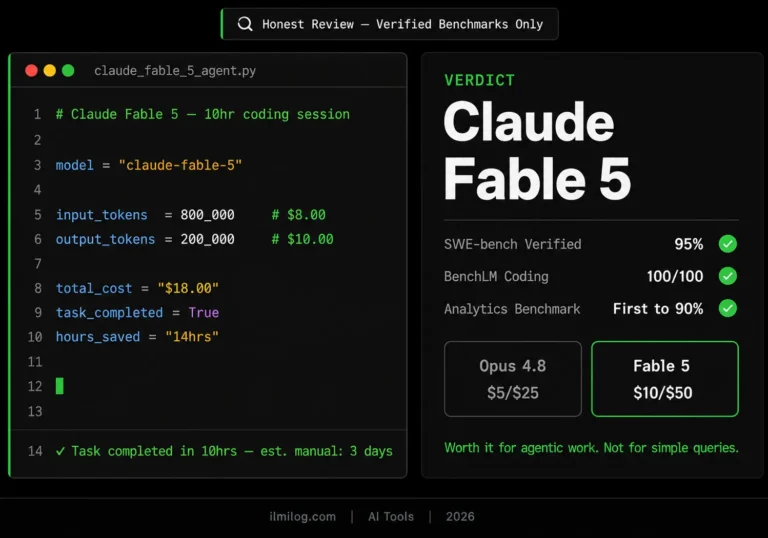
For a detailed breakdown of Claude’s model tiers and what each one costs, our Claude Fable 5 review covers the pricing structure across all current Anthropic models — useful reading before you decide which account type makes sense for your usage pattern.
Getting It Installed — The 2026 Way
Most tutorials you’ll find through a Google search still show the old method: install Node.js, then run npm install -g @anthropic-ai/claude-code. That approach still works but it’s officially deprecated as of January 2026. Anthropic switched to a native installer that doesn’t require Node.js at all — it’s faster, updates itself automatically, and causes fewer permission headaches.
Here’s what to actually do.
Step 1: Install Claude Code
On macOS or Linux, open Terminal and run:
bash
curl -fsSL https://claude.ai/install.sh | bash
That’s one command. It downloads Claude Code directly and installs it in ~/.local/bin/. It takes about 30 seconds.
On Windows, Claude Code requires WSL (Windows Subsystem for Linux). If you haven’t set up WSL yet, open PowerShell as Administrator and run wsl –install first, then restart your computer. After that, open a WSL terminal and run the same curl command above.
After installation, close your terminal completely and reopen it. This is important — the terminal needs to reload to find the new command.
Step 2: Verify It Installed
Run:
bash
claude –version
You should see a version number. If you see “command not found,” your terminal didn’t pick up the new PATH entry. Try running source ~/.bashrc or source ~/.zshrc (depending on which shell you use) and try again.
If you want a quick health check, run:
bash
claude doctor
This checks your installation and reports any issues. Fix whatever it flags before proceeding.
Step 3: Connect Your Anthropic Account
Navigate to the folder you want to work in — your project folder, or any folder for testing:
bash
cd ~/Documents/my-project
claude
The first time you run claude, it opens your browser and asks you to sign in to your Anthropic account. Sign in, authorize the connection, and the terminal session picks up automatically. If you’re running this in a headless environment (a server, CI/CD pipeline), set your API key as an environment variable instead:
bash
export ANTHROPIC_API_KEY=”your-key-here”
Once connected, you’ll see a welcome prompt. Claude Code is ready.
Your First Three Commands
These are safe for complete beginners. Copy them, modify the specifics for your project, and paste them at the Claude Code prompt. Each produces something concrete and useful.
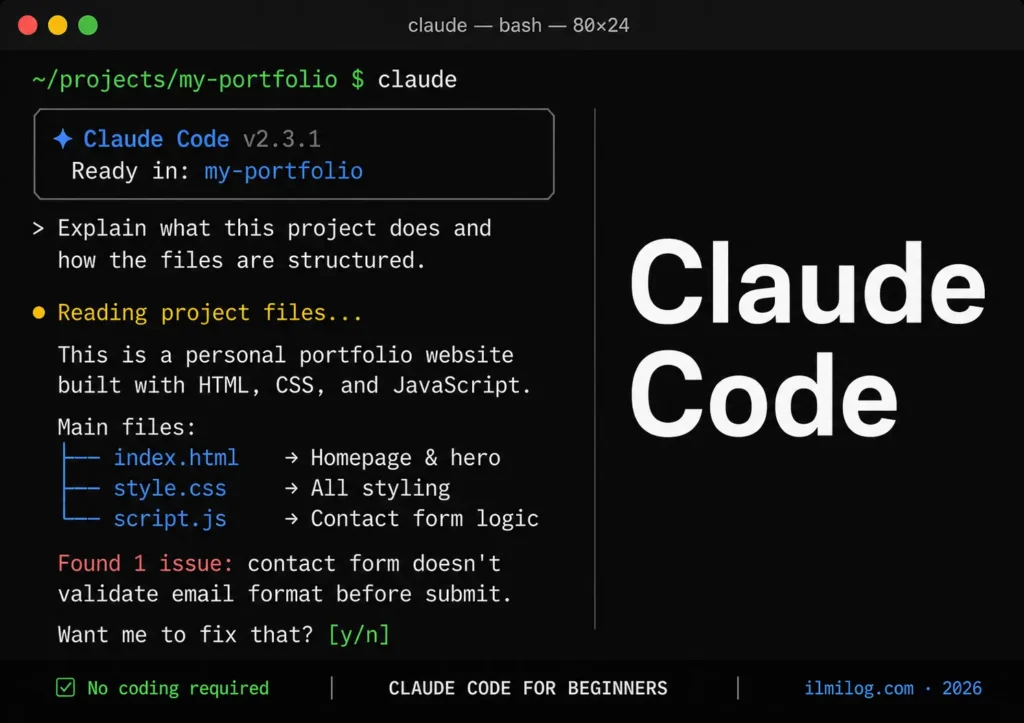
Command 1 — Understand what you’re working with:
Explain what this project does and how it’s structured. List the main files and what each one is responsible for.
This is the most useful first command for any new project, whether it’s yours or someone else’s codebase. Claude Code scans the directory, reads the files, and gives you a plain-English breakdown. No code required on your end — just read what it tells you.
Command 2 — Fix a specific error:
I’m getting this error when I run the project: [paste exact error message here]. Find what’s causing it and fix it.
Paste the exact error message from your terminal or browser console. Claude Code will find the relevant file, identify the cause, and propose the fix. It shows you exactly what it wants to change before changing it. You approve or reject.
Command 3 — Add something specific:
Add a contact form to the homepage. It should collect name, email, and messages. Keep the same design style as the rest of the page.
Replace “contact form” and “homepage” with whatever you actually need. The more specific you are, the better the result. “Add something to the website” is too vague. “Add a button to the top right of the navbar that says ‘Get Started’ and links to /signup” is specific enough to work.
After each command, Claude Code shows you what it’s planning to do and asks for approval. Read what it shows before confirming. This is where you catch anything that looks wrong.
How People Are Actually Using This
The patterns that show up most consistently among beginners and non-technical users:
Portfolio websites
Someone with a template they downloaded but can’t modify. They tell Claude Code “change the hero section text to [their text],” “replace the placeholder images with these,” “add a new section between Services and Contact that shows my recent projects.” Claude Code makes each change, shows them, and they approve. No code written manually.
Debugging inherited projects
You’ve taken over a project from someone else and have no idea how it works. The “explain this codebase” prompt is genuinely useful here. Claude Code reads the whole thing and gives you a map. Then you can ask follow-up questions: “What does this function actually do?” “Why does it call the API twice here?”
Automating repetitive file tasks
Rename 50 files according to a naming convention. Convert a CSV into a formatted HTML table. Pull data from one file and format it into another. Claude Code handles these without you writing a single line of script.
Adding features to existing code
“Add user authentication to this app” is a multi-file task that would take a developer several hours. Claude Code plans it, shows the approach, asks you to confirm, then executes across however many files are involved. It’s not always perfect on the first pass, but it gets much closer than starting from nothing.
What I Found When I Tested It
I ran Claude Code on three different tasks to see where it held up and where it fell apart.
Test 1 — Explaining an unfamiliar codebase
I pointed it at a small Express.js project I hadn’t looked at in months and asked it to explain the structure. The breakdown it returned was accurate and immediately useful — it identified the three main modules, explained what each route handler does, and flagged one function that was doing two unrelated things. That kind of analysis would have taken me 20 minutes of file-opening and reading.
Test 2 — Fixing an actual bug
I introduced a deliberate error into a JavaScript file — a variable referenced before it was defined — and asked Claude Code to find and fix it. It found it in one pass, explained why the error occurred, and offered the fix. Approved it and the code ran correctly. Time taken: under two minutes.
Test 3 — Adding a feature
I asked it to add a search bar to a simple HTML page that would filter a list of items by typing. This is where it got interesting. The first attempt worked but used an approach that required a library I didn’t have loaded. I pushed back: “Do this without any external libraries, pure JavaScript only.” It revised the approach, re-did it in plain JavaScript, and the result worked cleanly. The back-and-forth took about 10 minutes total.
The pattern across all three: the simpler and more specific the task, the faster and cleaner the result. Open-ended or ambiguous requests produced more back-and-forth and occasionally more credit consumption than I expected.
Claude Code vs. Cursor vs. Regular Claude Chat
A question beginners ask constantly: what’s the difference and which should I use?
| Feature | Claude Code | Cursor | Claude Chat (Claude.ai) |
| Where it runs | Your terminal | Your IDE (VS Code-based) | Browser |
| File access | Direct — reads and edits your files | Direct — inside your project | None — you paste manually |
| Code changes | Proposes and applies automatically | Proposes and applies automatically | Suggests only — you copy/paste |
| Cost | API credits per session | Subscription ($20+/month) | Included in Claude subscription |
| Best for | Terminal-comfortable users, automation | Developers who prefer an IDE | Quick questions, drafts, learning |
| Setup difficulty | Moderate | Easy (download app) | Zero |
Use Claude Code if: You want direct file editing, you’re comfortable in a terminal, and you have specific tasks to automate or complete.
Use Cursor if: You prefer working inside a code editor with a visual interface. Cursor is built on VS Code and feels more familiar for anyone who doesn’t like terminals.
Use Claude Chat if: You just want to ask questions, get code snippets, or explore ideas without a project loaded. It’s the fastest for quick answers and requires nothing beyond a browser tab.
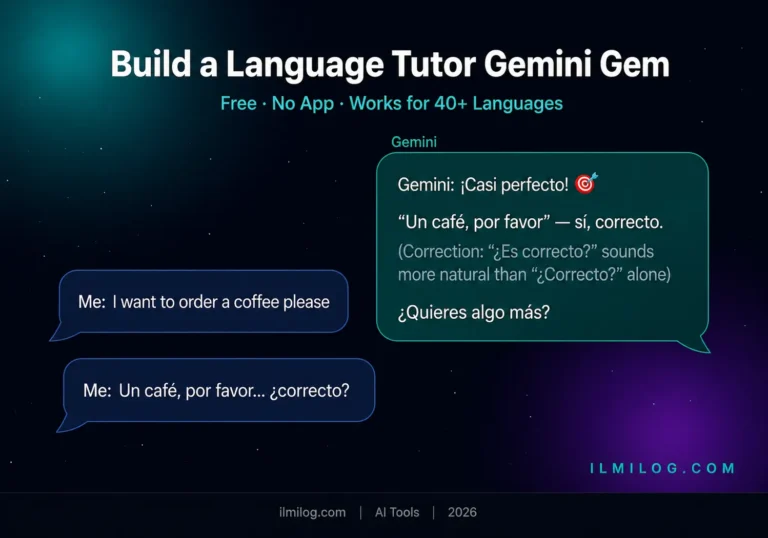
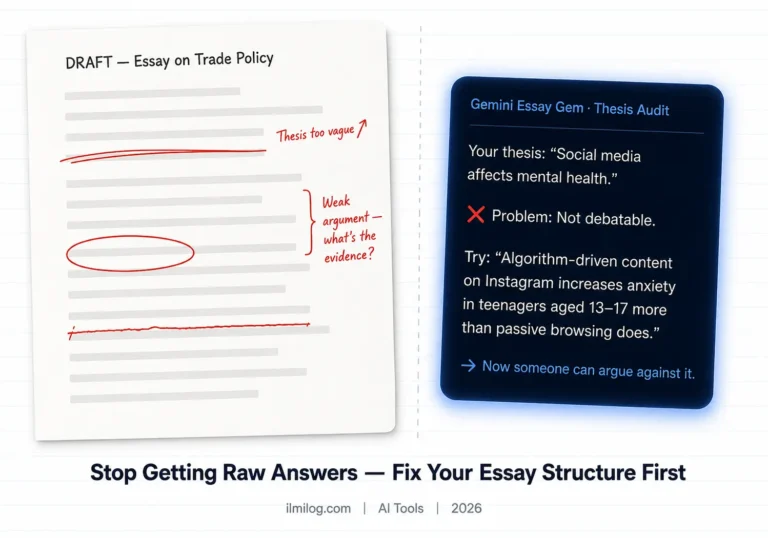
For most non-technical users who are new to all of this, starting with our guide to Gemini Gems prompts for students and learning how to direct AI tools effectively before moving into code-editing territory is a reasonable sequence. The prompting skills transfer directly to Claude Code.
When This Doesn’t Work
Large, complex codebases you haven’t reviewed. Claude Code can analyze a big project, but if you don’t understand the output or can’t evaluate whether the proposed changes are correct, you’re approving things blindly. That’s risky in a production system.
Real-time or live data requirements. Claude Code doesn’t have internet access during a session by default. If your task needs current data, API responses, or any dynamic content, it can write the code to fetch it — but it can’t fetch it itself while coding.
Tasks requiring domain expertise. Asking Claude Code to “optimize the database query” works if the query is clearly written. Asking it to redesign your data architecture requires it to make judgment calls that depend on your specific business requirements — context it doesn’t have unless you provide it in detail.
Situations where you need to explain ambiguous requirements. If you can’t clearly describe what you want, Claude Code will fill in the blanks based on common patterns. Sometimes that’s fine. Sometimes it builds something technically correct but wrong for your use case. The more specific you can be in your prompt, the more reliable the output.
When you’re in a hurry and can’t review the output. Claude Code shows you what it wants to change before changing it. If you approve changes without reading them because you’re pressed for time, you’re taking on risk proportional to the size of what you’re approving.
Common Beginner Mistakes
Running the deprecated npm install method
If you followed a guide from 2025 and something isn’t working right, this is likely why. Uninstall the old version with npm uninstall -g @anthropic-ai/claude-code, then use the native installer command from this guide.
Not setting a spending cap first
A long session on a large codebase can consume more credits than expected, especially if Claude Code is reading many files with every query. Set the billing limit in console.anthropic.com before you start experimenting.
Prompting too vaguely
“Fix my code” produces a question: “What would you like me to fix?” Specificity is everything. “The login form submits but the page doesn’t redirect to /dashboard after a successful login” gives Claude Code something concrete to investigate and solve.
Not restarting the terminal after installation
The single most common “it’s not working” issue. Close completely — not just open a new tab — and reopen. Then try claude –version again.
Running it from the wrong directory
Claude Code reads files relative to where you launched it. If you run claude from your home directory but your project is in ~/Documents/my-project, it has no idea your project exists. Always cd into your project folder first.
Approving changes without reading them
Claude Code shows you a diff — the before and after of every change — before applying it. New users sometimes click through without reading. This is fine for a five-line fix. It’s not fine for a forty-file refactor where something could have gone sideways.
Decision Checklist
- I have a specific project or set of files I want to work with — not a blank-page starting point
- I’m comfortable opening a terminal and running one or two commands
- I’ve set a billing limit in my Anthropic console
- I can describe what I want clearly — not “make it better” but “add X that does Y”
- I have time to review what Claude Code proposes before approving it
- My project files are accessible locally — not locked in a cloud-only environment
If you check four or more: Claude Code is worth setting up. Go through the installation steps and run your first command today.
If you check two or fewer: start with Claude Chat (claude.ai) to build familiarity with how Claude works and how to prompt it effectively. Move to Claude Code once that feels natural.
Frequently Asked Questions
Q: Do I need coding experience to use Claude Code?
You don’t need to write code, but basic terminal familiarity helps. You need to know how to open a terminal, navigate to a folder with cd, and run commands. If you’ve never done any of that, spend 20 minutes with a basic terminal introduction first — it will make the setup much less frustrating.
Q: Is Claude Code free?
Installation is free. Usage is not. Every session uses API credits from your Anthropic account. A beginner session typically costs $0.50–$2.00. Longer or more complex sessions cost more. Set a spending cap before you start.
Q: Where do I get an API key?
Go to console.anthropic.com, create an account or log in, and navigate to the API Keys section. Generate a new key and copy it — you only see it once. Keep it somewhere secure. You’ll use it if you need to authenticate in a headless environment; for normal usage, the browser-based login handles authentication automatically.
Q: How much does it actually cost for a typical beginner session?
A 30-minute session with a small project (under 50 files, simple tasks) typically runs $0.50–$1.50. A more complex session running for an hour with large files could reach $3–$5. The cost scales with how much text Claude Code reads and writes per session. Reading large files is the main driver of higher costs.
Q: Can I use Claude Code without a paid subscription?
You need an Anthropic account with API access. Claude Pro and Max subscribers get some included usage; anything beyond that bills per token through the API. There is no free tier that includes Claude Code usage.
Q: What’s the difference between Claude Code and just asking Claude to write code?
In Claude Chat (claude.ai), Claude gives you code suggestions that you copy and paste into your files manually. Claude Code accesses your files directly, proposes changes in place, and applies them on your approval — no manual copy-pasting. For small one-off questions, Claude Chat is faster. For anything that touches multiple files or requires ongoing back-and-forth on a real project, Claude Code is significantly more practical.
The setup from scratch to first working command takes most people 15–20 minutes. The majority of that time is account setup and reading through what Claude Code shows before approving it. Once you’ve run two or three sessions and understood the approval workflow, it becomes fast.
Start with a project where the stakes are low — a personal site, a test folder, something you can rebuild if anything goes sideways. Get comfortable with the approval flow. Then move to anything more important.
Our guide to making money with Claude AI covers specific workflows — content repurposing, research services, client work — where adding Claude Code to your toolkit can meaningfully speed up delivery. Worth reading once the basics here feel solid.
Tested and written by the ilmilog.com editorial team. Claude Code setup tested on macOS Sonoma (Apple Silicon) and Ubuntu 22.04 using the native installer method. Testing period: June–July 2026. All pricing and installation details reflect the current state as of July 2026 — verify at claude.ai/code and console.anthropic.com before making decisions.